Workflows let you save your favorite settings, so you can apply them with a single click instead of configuring the same options every time. This guide uses an interview workflow as the example, from setting it up to importing the finished CV back into Sprint CV.
Prefer to watch instead of read? Here’s the full walkthrough:
Create a workflow profile
Go to Company Settings and open the Workflow Settings tab. Click “Add Workflow Profile” to start a new one.
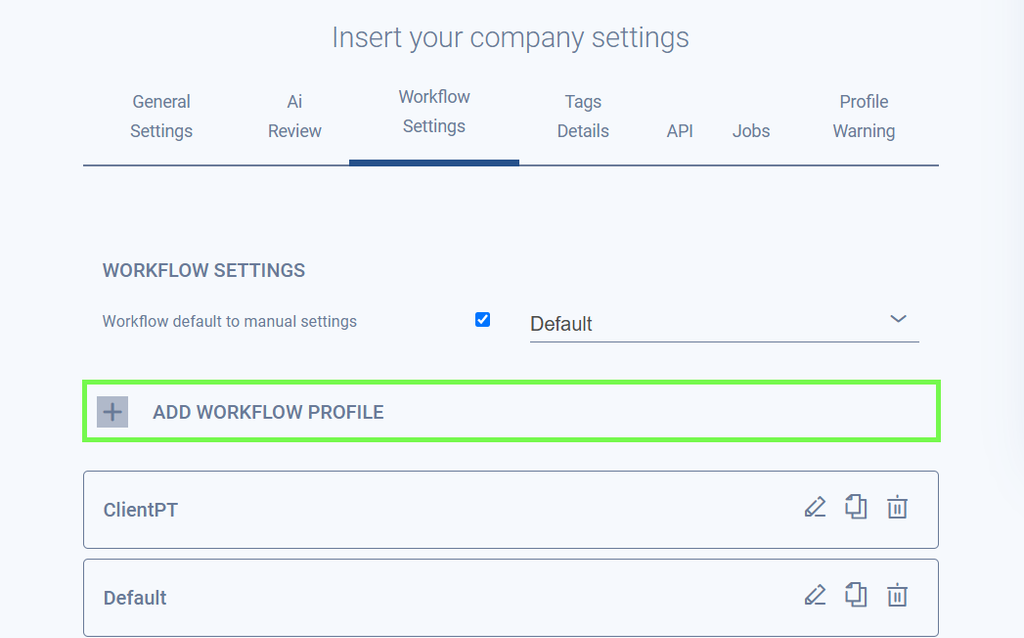
Name it and choose the language
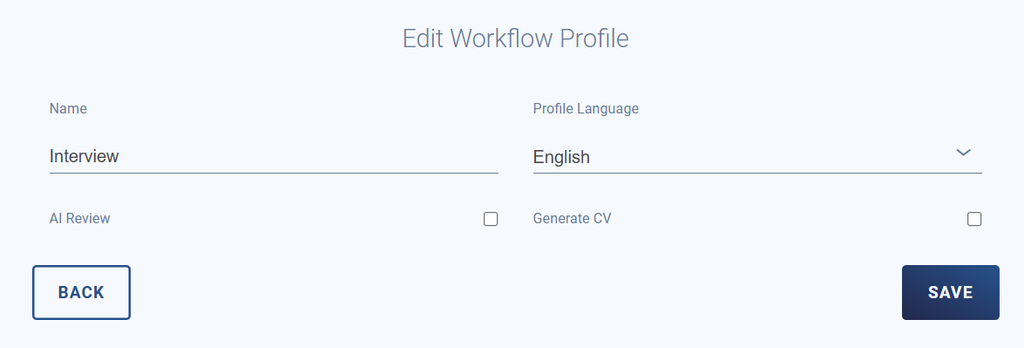
Give the workflow a name that describes its purpose. In this example, it is called “Interview”. Then choose the profile language.
Which AI Prompt Profile should a workflow use?
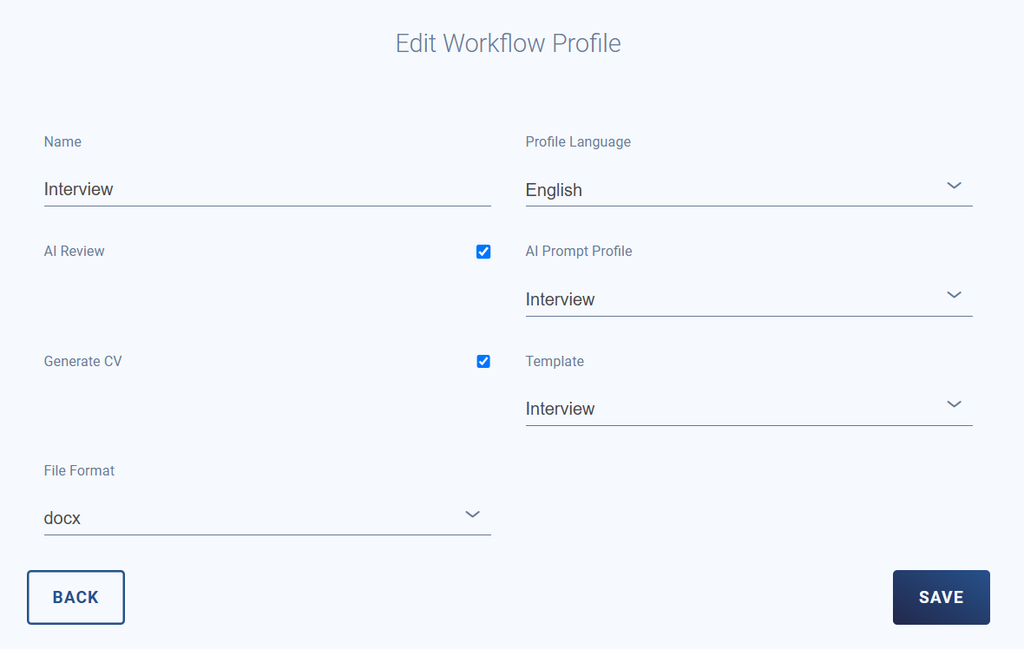
Keep AI Review checked and choose the Interview profile from the AI Prompt Profile dropdown.

What if I haven’t set up an AI Prompt Profile yet?
Follow this guide to learn how to create and use an AI Prompt Profile.
Set the CV output and save
Check “Generate CV”, then choose the template and the file format. Click Save, and the workflow is ready to use.
Use the workflow on a new consultant
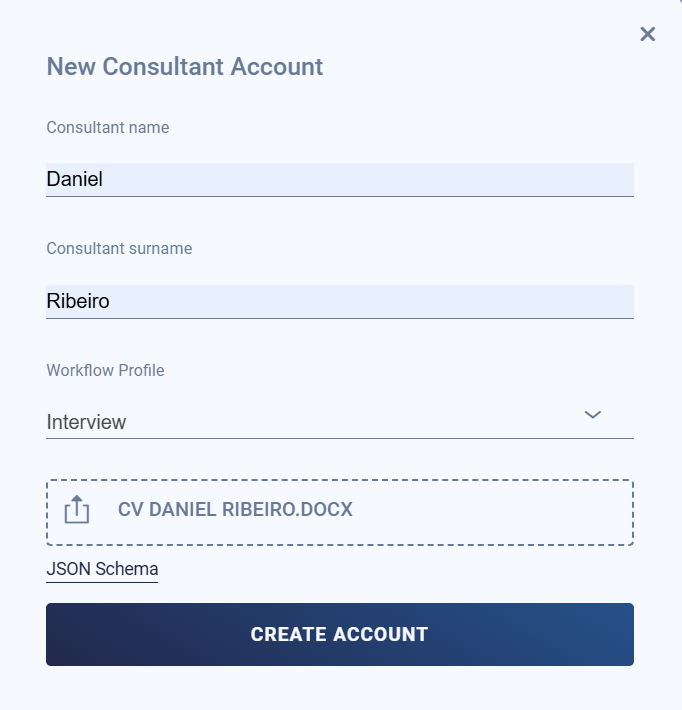
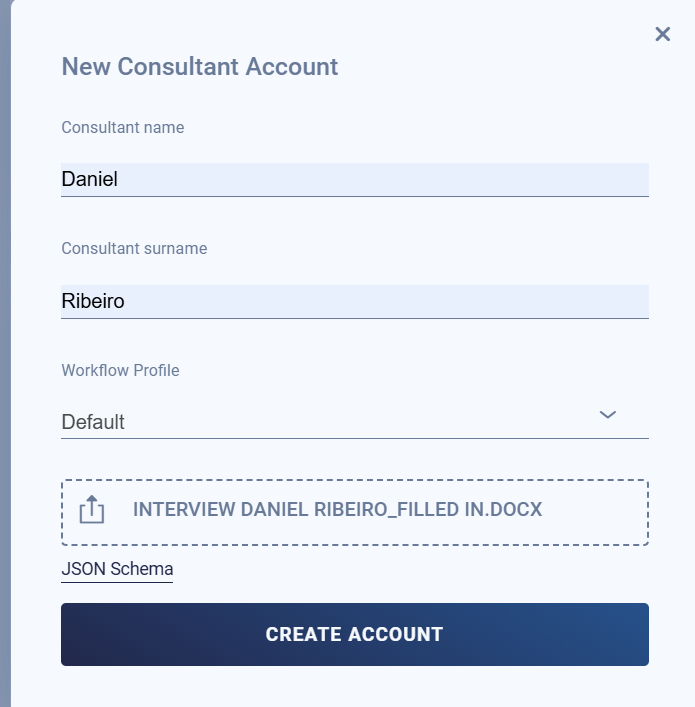
From your homepage, click “New Consultant” and enter the name and surname. In the workflow dropdown, choose Interview, import the original CV and click “Create Account”.
Or send the CV by email
You can also email the CV to the Sprint CV mailbox. In the email, write “Workflow = Interview”, followed by the job description below it. The interview notes are based on that job description.
Why add a job description to the email?
The interview notes in the final CV are based on it, so the questions are tailored to the role.
Receive the CV with interview notes
The output is a CV that includes interview notes, generated with the template and file format you chose in the workflow.
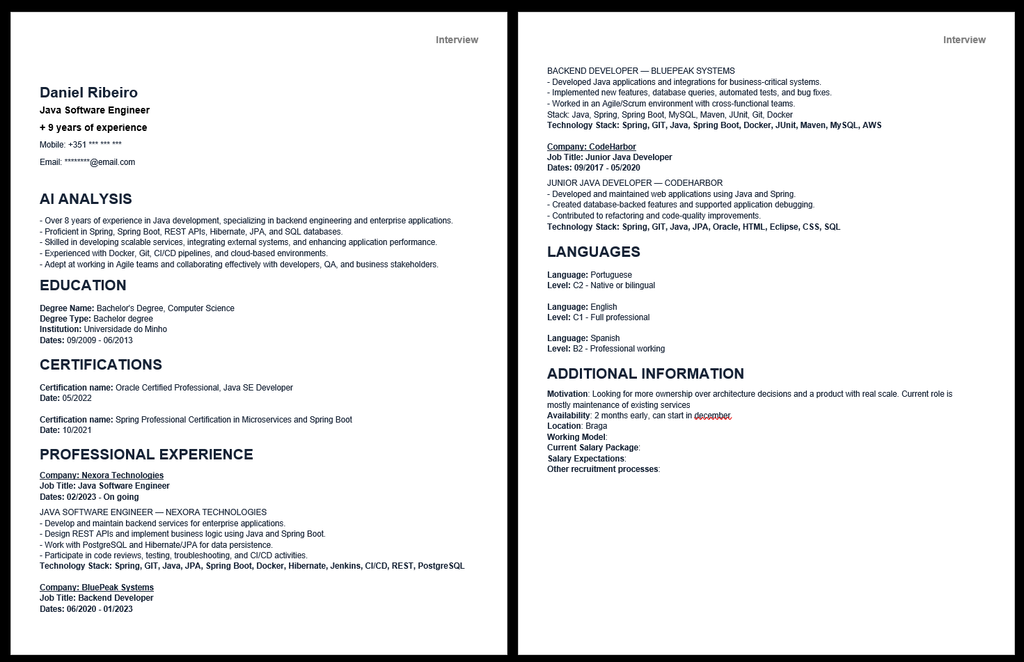
How are interview notes used in a workflow?
During the interview, answer the interview notes directly in the document. You can respond to the questions or add anything else the candidate tells you, like new skills and projects that he worked on.
Import the CV back into Sprint CV
Once the notes are filled in, import the CV back into Sprint CV. You can also email the CV to the Sprint CV mailbox.
Before you import the CV, go to company settings and make sure you have the “avoid duplicated consultants” setting checked. This updates the existing profile instead of creating a new one.
What happens to the answers I wrote?
The platform takes into account everything you wrote and confirmed. Any confirmed technologies are added to the consultant’s experience.
Workflow checklist
- ✓Open Company Settings and go to the Workflow Settings tab
- ✓Click “Add Workflow Profile”
- ✓Name the workflow and choose the profile language
- ✓Check “AI Review” and choose the AI Prompt Profile
- ✓Check “Generate CV”, choose the template and file format, and click Save
- ✓Create a new consultant and choose the workflow, or email the CV with “Workflow =” and the workflow name
- ✓Receive the CV with interview notes
- ✓Answer the notes during the interview
- ✓Import the CV back with “avoid duplicated consultants” checked
Frequently Asked Questions
What is a workflow in Sprint CV?
A workflow saves your favorite settings, so you can apply them with a single click.
Where do I create a workflow?
In Company Settings, on the Workflow Settings tab, using the “Add Workflow Profile” button.
Can I apply a workflow by email?
Yes. Send the CV to the Sprint CV mailbox and write “Workflow =” followed by the workflow name, for example “Workflow = Interview”. You can add a job description below it.
How do I avoid duplicate consultants when re-importing a CV?
Check the “avoid duplicated consultants” setting on Company Settings. The existing profile is updated instead of a new one being created.
Still have questions about workflows? Send an email to hello@sprintcv.com and our team will walk you through it.
Set it once, reuse it every time.
See how this fits into the full Sprint CV onboarding guide.