At Sprint CV, we are dedicated to making the CV management process as efficient as possible. Our latest feature, the AI Review Fast Button, allows users to quickly review a CV, generating new sections using AI immediately after creating a consultant profile.
A New Functionality
This new tool automatically generates new sections for a profile and corrects language to ensure clarity and professionalism. When you are refining or reviewing a candidate’s profile, this feature will provide a quick and reliable way to upgrade the content with just one click.
Before we introduced this new button, you could choose the AI Review option whenever you were creating a new consultant profile. However, sometimes the parser would give imperfect results while importing a CV, missing information in specific sections like skills or languages. Therefore, you would need to review the CV even after the AI Review, when the opposite should be the case. This issue is now fixed. In this post, we’ll explain how this new functionality works, how it can benefit you, and how to activate it.
AI Review in Action
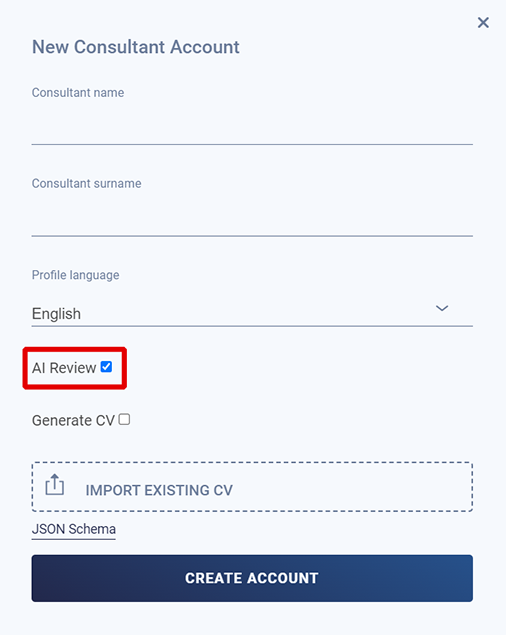
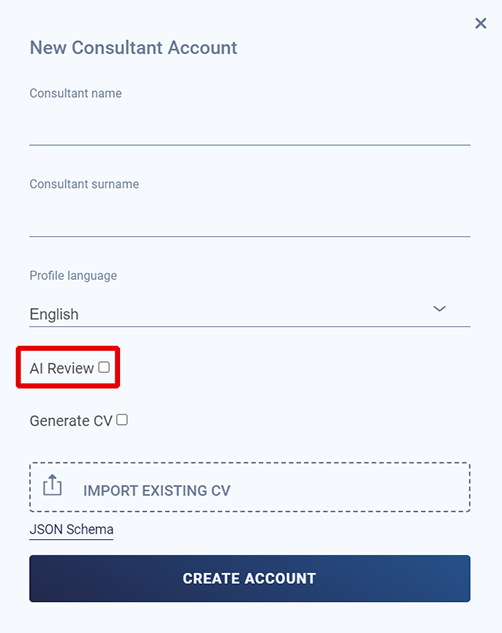
The new functionality comes with a different process. In the first step, while you’re creating a consultant account and importing their CV, you should, as a best practice, leave the AI Review box unselected. This will guarantee that the AI won’t act on the parsed profile which, as we saw above, can sometimes miss information in some sections.
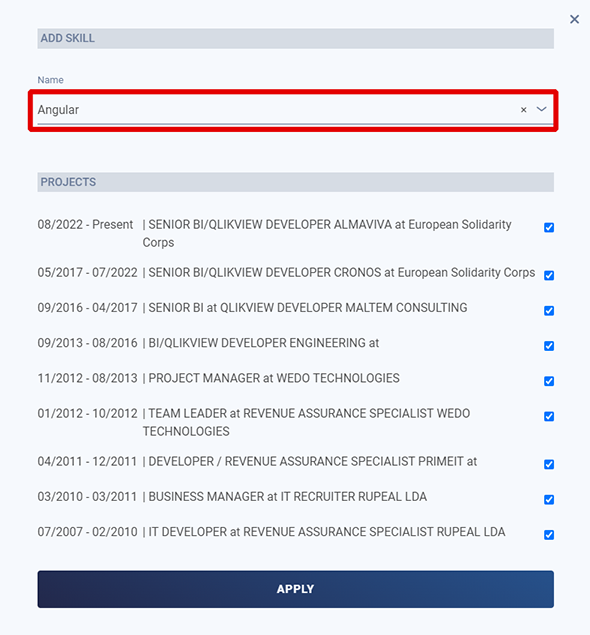
After the CV is imported and the profile is created, it’s time to review the data. Check the different sections of the consultant’s CV on their page, and confirm if the information is fully present and accurate. If you find any errors, we advise you to correct them by selecting “edit profile” and choosing the relevant section. In this example, we’ve noticed that the parser missed the “Angular” skill that our consultant had during his career. To fix it, we enter edit mode, navigate to the skills section, and click “add skill.” Afterwards, we wrote the skill and clicked on the projects in which it was relevant. Don’t forget to click on “apply.”
Then, when you notice that all the information is accurate, go to the consultant’s profile and click on “AI Review.” Your reviewed profile will be created and accessible in the profiles list in a matter of minutes.
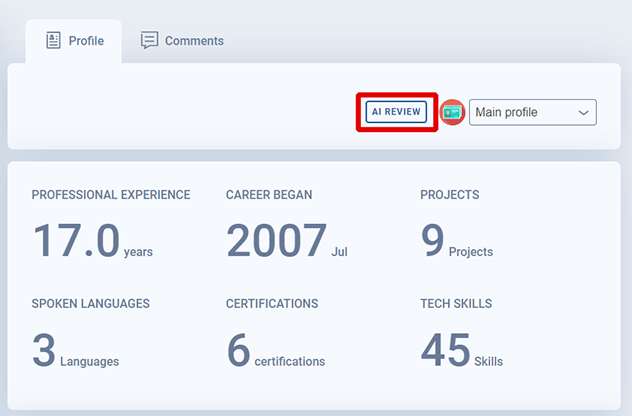
With this new process, the AI Assistant acts on the corrected parsed information, instead of the parsed information by itself, giving a much more accurate result. This comes with a bonus: you get to keep both the new profile and the older one!
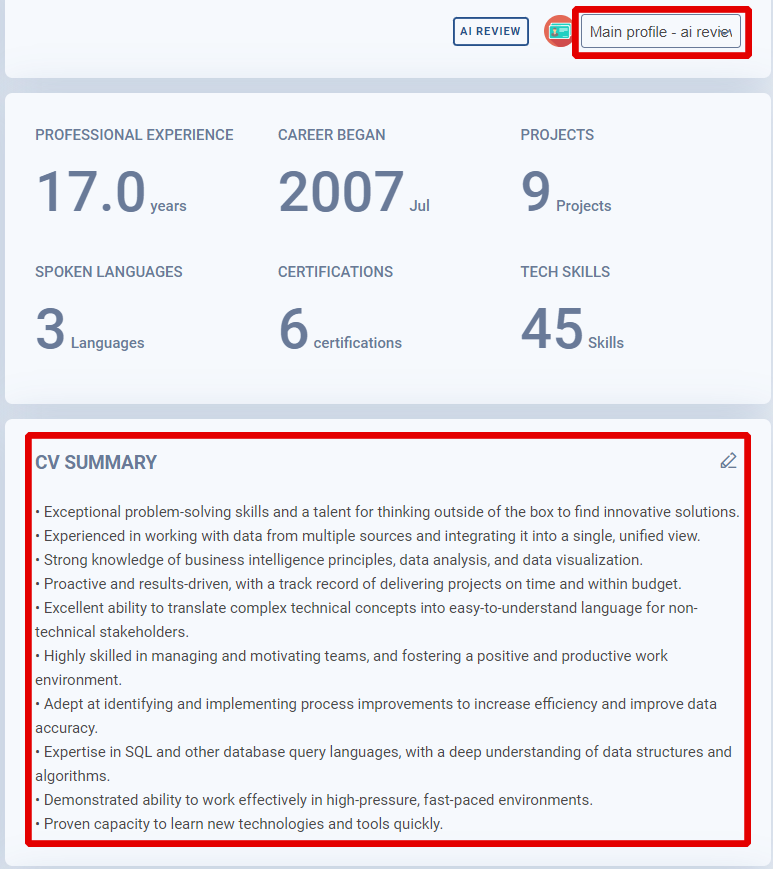
How to activate and customize the AI Review
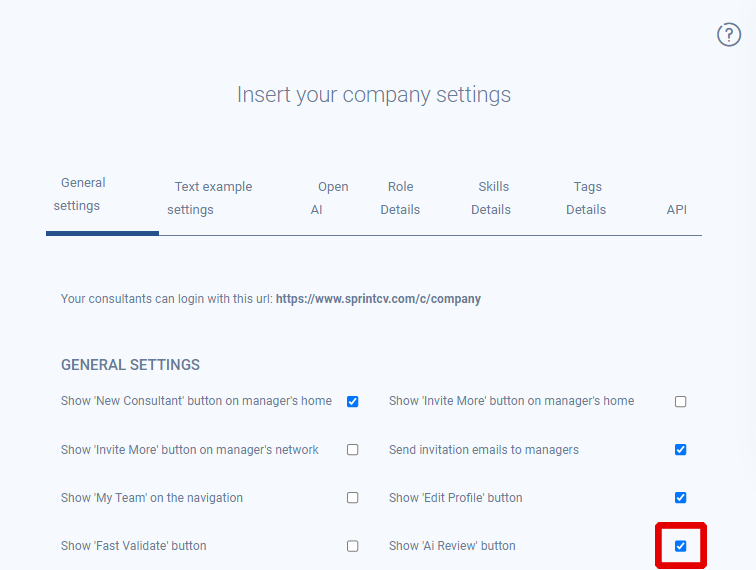
To use the AI Review Fast Button, you need to activate it in the Company Settings. Head to “Company,” then “Company Settings,” and in the “General Settings” tab, click on the box next to “Show AI Review button.”
Furthermore, you can choose which sections of a profile are affected or created by the AI Assistant. In the Company Settings, select the “Open AI” tab. Then, write a prompt in the sections you want to be reviewed. If you don’t want them to be reviewed, leave them empty. Simple and fully editable! Don’t forget to click on “Save and Next” to save the changes you’ve made.
Frequently Asked Questions
What does the AI Review Fast Button do?
It analyses a consultant's profile, generates missing sections such as a summary, and corrects grammar and wording, so the profile is complete and professional before CVs are generated for clients.
How do you activate AI Review in Sprint CV?
Go to Company, then Company Settings, open the General Settings tab and tick the option to show AI Review. Once enabled, the button appears on consultant profiles.
When should AI Review be used?
After the CV has been imported and the parsed data checked. Importing with AI Review off first, then reviewing, gives the most reliable result.
Conclusion
At Sprint CV, we always aim to provide you with the best tools for the job. Our investment in the AI features of our platform aims to give you a better way to create and manage profiles and CVs. The AI Review Fast Button represents a new step that will save you headaches. With this functionality, you will no longer feel that you’re moving back and forth in the editing phase of profile creation, resulting in a clearer step-by-step process. We are already partnering with many companies, so why not let us help you?
If you have any doubts, book a meeting? with our founder Marco Pincho or contact him directly on LinkedIn.