When a client asks for a profile on a Friday afternoon, your company can only send what is on file. If that CV was last touched two projects ago, someone has to chase you, rewrite it and hope nothing is missing. A request to update your profile often arrives as a link with no instructions, which makes it easy to postpone.
The Consultant Workspace is where your company sends you to manage your own CV, so the data it works with is data you have confirmed. This guide follows the profile one section at a time until every warning is cleared and you can validate. It replaces our earlier Personal CV Manager tutorial.
Watch the Tutorial
Prefer to see it done first? The video below walks through the same steps in a few minutes. The rest of this guide gives you the detail to come back to while you work.
What the Consultant Workspace Is and What It Asks of You
What is the Consultant Workspace and what do I have to do in it?
It is the part of Sprint CV where you review, complete and validate your own profile, so your company works with data you have confirmed.
You see your own profile and not the whole database. Your recruiter or team leader can then check the validated profile, which gives the two of you a shared way to keep it accurate. Your job is simple to state: clear the warnings, make each section true and complete, and validate.
The workspace is part of the Enterprise CV Manager, and companies switch it on when they want consultants involved. Your company decides that. You can read what it offers on the Consultant Workspace page.
Your recruiter may also have sent you a best practices guide by email, and perhaps a client's job description. Keep both open, because several steps below ask you to align your profile with them.
Step 1: Clear Every Warning in the Consultant Workspace
When you open your profile, the platform flags every issue it finds. Each warning has a Show button. Click it and you land directly on the section that needs attention, so you never have to hunt for what is missing.
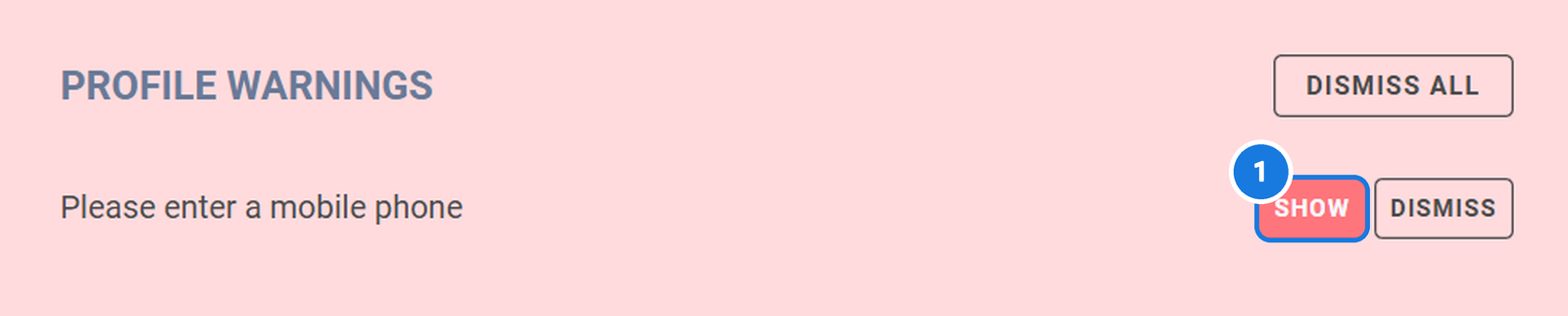
Your main goal is to clear all the warnings. Work through them in order. In this example the first warning is the summary, so that is where we start.
Step 2: Write Your Summary
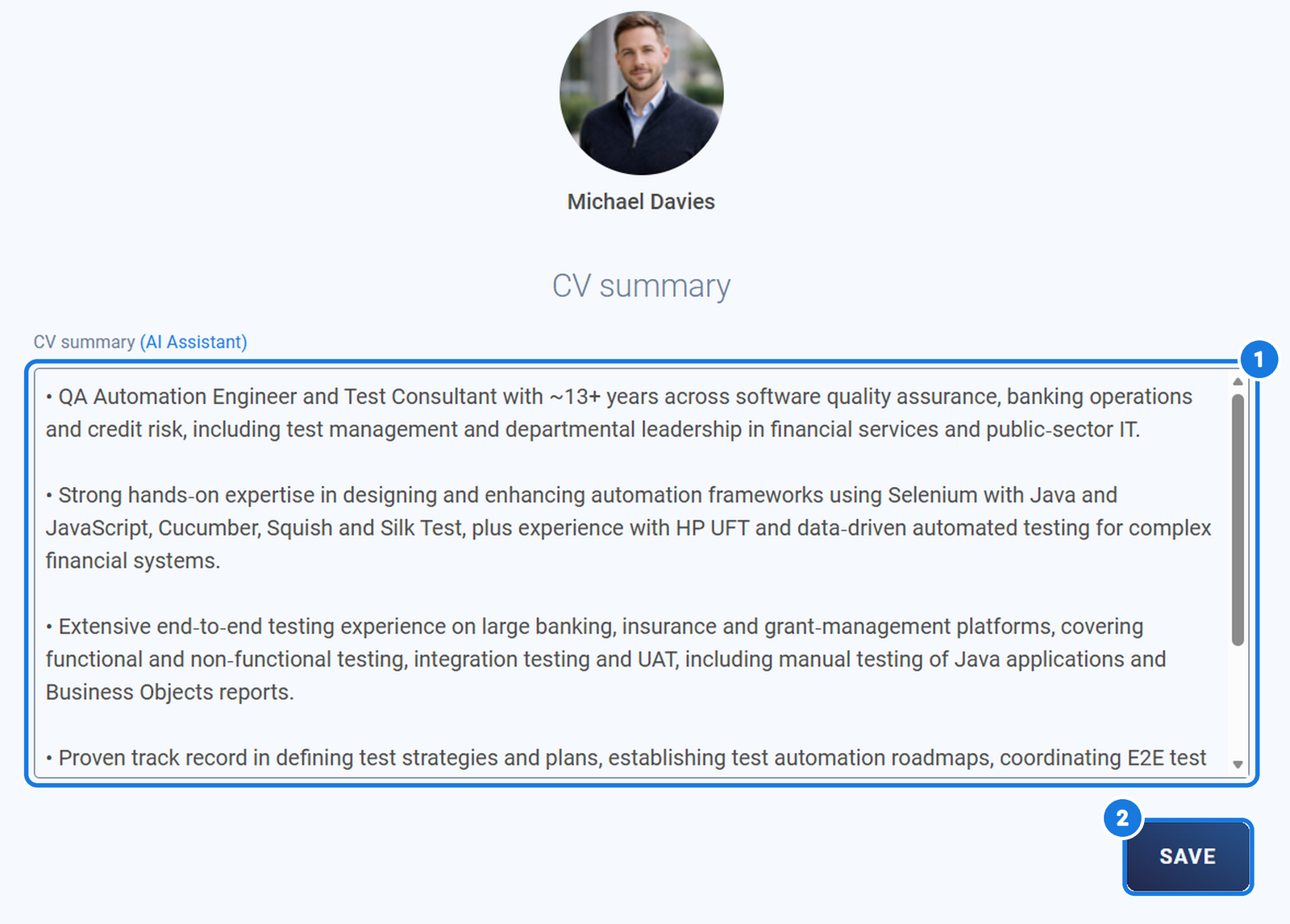
How long should my profile summary be and what should it cover?
Aim for around 300 to 400 words, written yourself in your own words.
Cover your background and your main areas of expertise, then tailor it to the kind of assignments your company puts you forward for. If your recruiter shared a best practices guide, write to it. Click Save when you are done.
Writing the summary yourself matters because it is the first thing a reader of your profile sees. It should sound like a person who did the work, not like a template.
Step 3: Check Your Personal Details
The personal details sit on the left. Click the pencil icon and go through every field: date of birth, nationality, phone number and contact email.
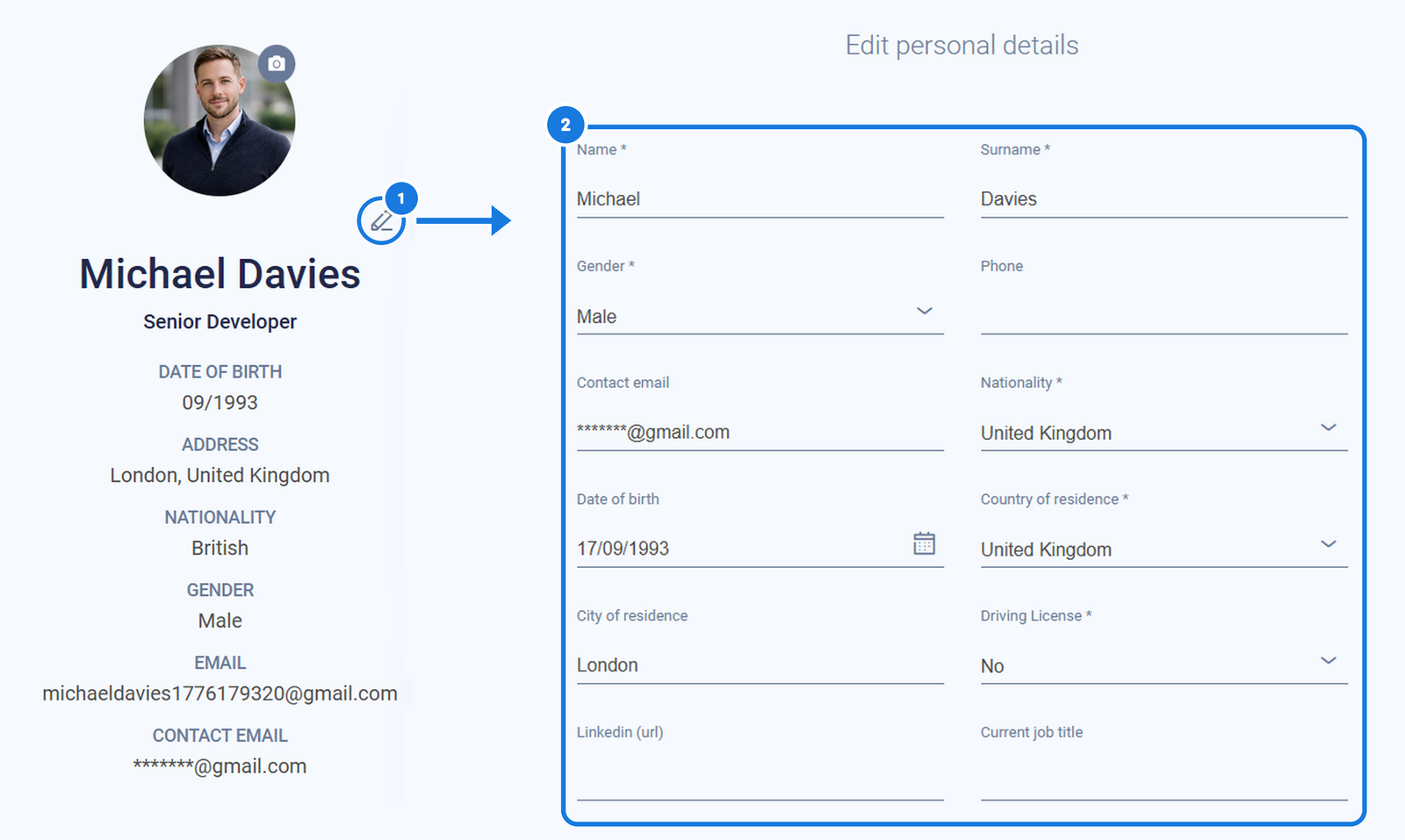
Check the contract type as well. If you are a freelancer and already have your own company, add the company name. This information is how your company reaches you and matches you to client assignments, so a wrong phone number or an outdated email has a real cost.
Step 4: Review Your Education
Open the education section and check each entry. The degree type, the institution, the course title and the dates should all be correct.
You can upload your diplomas in PDF or Word format. If a degree is missing, click Add education and create a new entry.
Step 5: Update Trainings and Certifications
Trainings and certifications follow the same logic. Check the type and the dates of each one.
If you have a certificate of completion, set that field to yes and upload the certificate. To add a course or certification that is not listed yet, click Add training.
Step 6: Complete Your Professional Experience in the Consultant Workspace
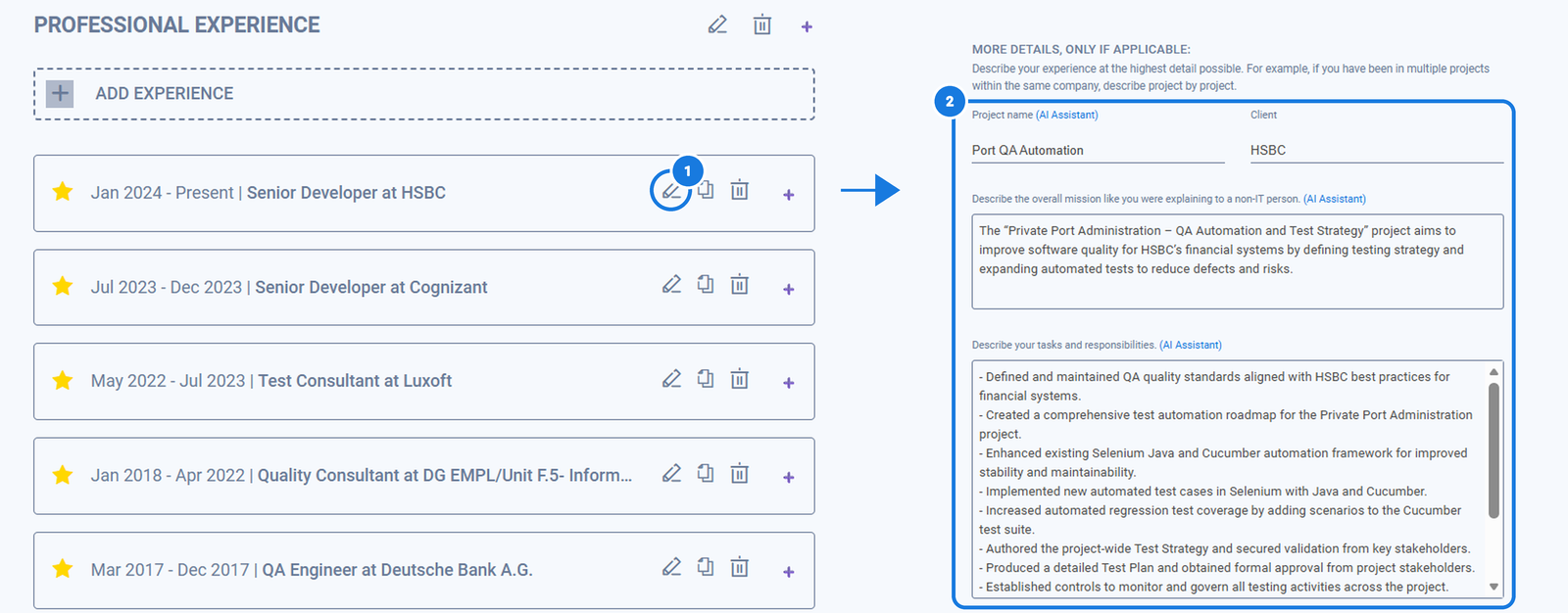
This is the most important part of your profile, and the one that deserves the most time. For each project, start with the basics: check the client, the team size and the dates.
Then write an introduction paragraph of around 30 words. It should give the context of the project and its main goal.
How much detail should I write in the responsibilities section?
As much as you need. In this section, more is more.
Describe everything you did: business requirements, development, backend and front end, architecture, testing, project management and DevOps. Be honest about your role, and do not worry about length. Then explain how you used each technology. For example, you built the backend with Java and Spring Boot and you perform testing using JUnit and Selenium.
Next, look at the stack and compare it with the job description your recruiter shared. Make sure every technology that is requested is there, such as Java 8 or Angular, and that it carries the right years of experience.
Repeat this for each experience. To add a new one, click Add experience and fill in the details.
Step 7: Change Several Projects at Once With Bulk Edit
How do I apply the same change to several projects without editing each one?
Use Bulk edit projects, from the pencil at the top of the professional experience section.
Fill in only the fields you want to change. For example, to align your job title with the job description, type it in the job title field. Then select the projects where it should apply and click Update.
This saves real time when the same title, client or detail needs correcting across many entries. Leave the other fields empty so nothing else is touched.
Step 8: Check Your Skills and Evaluation
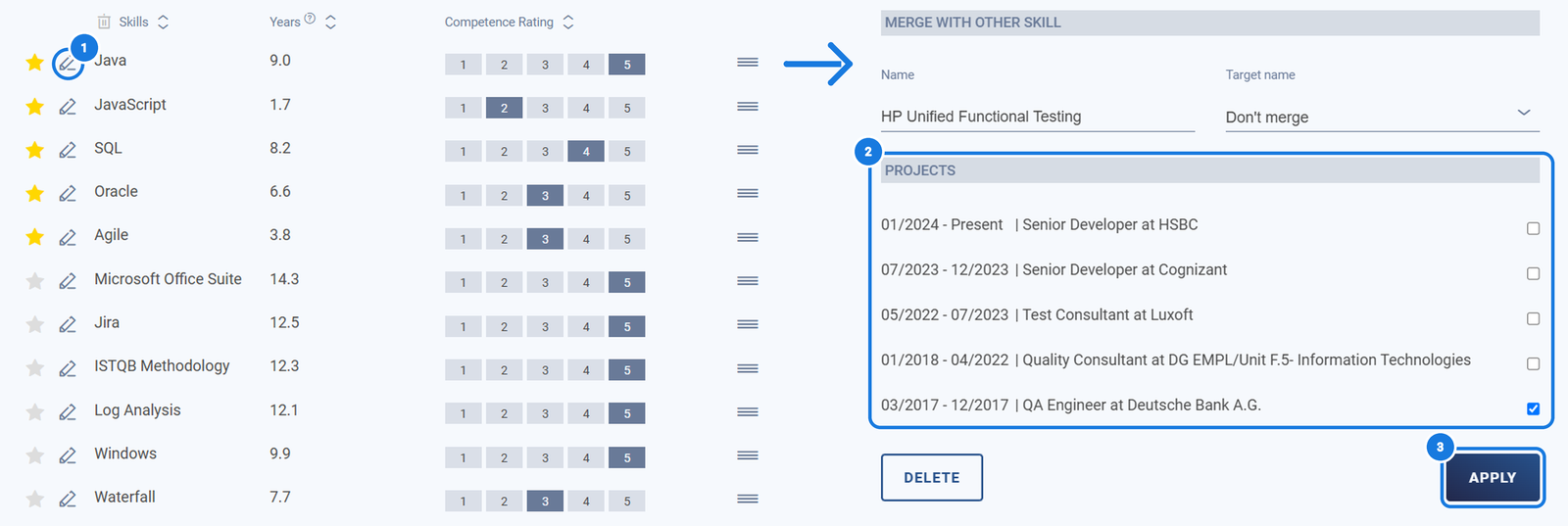
After you have reviewed all your professional experience, go to the skills and evaluation section. It shows every skill, the months of experience for each one and your self-evaluation.
Check that the months and the rating match your real experience, and compare them with what the job description requests.
To change a skill, click the pencil next to it. You will see all your projects and you can choose where you used that skill. To add Java to all your projects, tick every project and click Apply. You can also delete a skill from this window.
To add a single skill, use Add skill. To add several at once, use Add multiple skills. For example, add Angular, JavaScript, HTML 5 and CSS, select the projects since 2018, and then set your self-evaluation for each one.
If your recruiter shared a job description, check once more that all of its technologies are present in your profile.
Step 9: Validate Your Profile in the Consultant Workspace
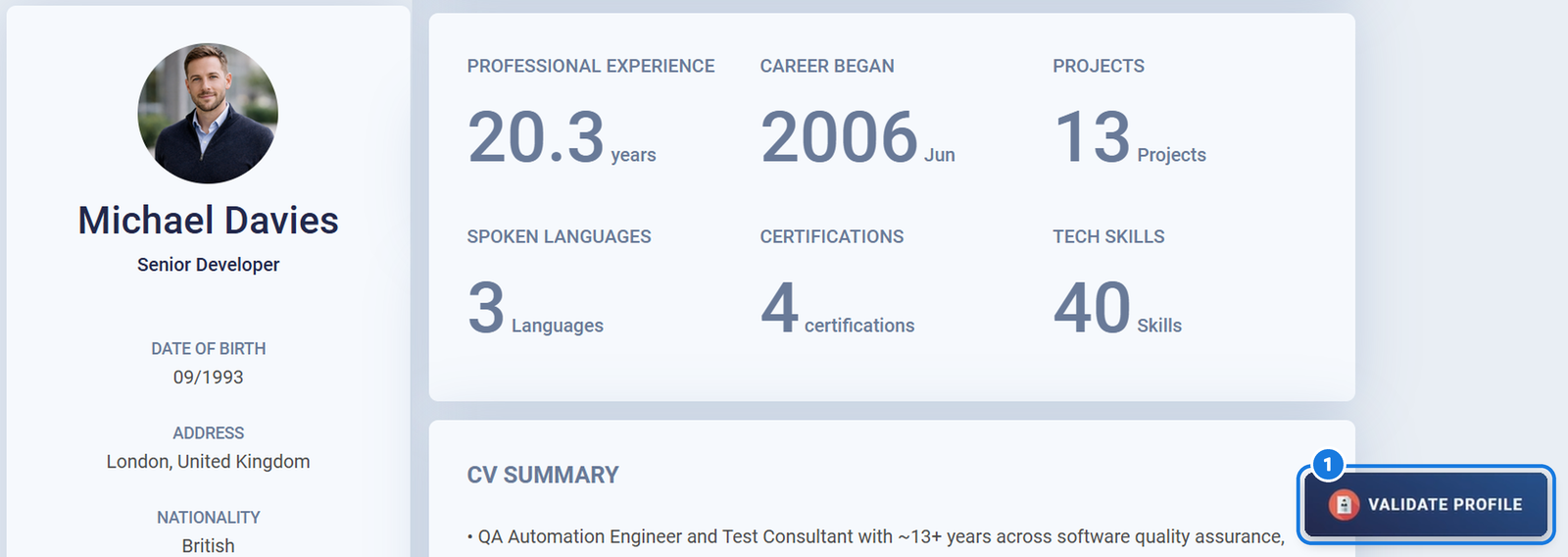
When everything is done and no warnings remain, click Validate profile. That is the step that tells your company the profile reflects your real experience and is ready to be used with clients.
After you validate, your team leader or Human Resources can verify it. Validated profiles are kept separate from the ones still waiting, so your recruiter knows which are confirmed.
Checklist Before You Validate
- ✓Every warning is cleared, using Show to jump to each one
- ✓Summary written in your own words, around 300 to 400 words, and saved
- ✓Date of birth, nationality, phone, contact email and contract type checked
- ✓Company name added if you are a freelancer with your own company
- ✓Education entries correct, with diplomas uploaded where you have them
- ✓Trainings and certifications checked, with certificates of completion uploaded
- ✓Each project has client, team size, dates, a 30-word introduction and detailed, honest responsibilities
- ✓Every technology from the job description your recruiter shared appears in the stack, with the right years of experience
- ✓Skills show the right months of experience and an honest self-evaluation
Frequently Asked Questions
Do I have to use the Consultant Workspace?
It depends on your company. The workspace is optional, and companies switch it on when they want consultants to manage their own CV and keep it current. If your recruiter sent you a link, your company has chosen to use it.
What do the warnings on my profile mean?
Each warning points to information the platform still needs, such as a missing summary or an incomplete section. Click Show to go straight to the section, fill it in and the warning clears.
Can I see other consultants' profiles?
No. You see your own profile and not the whole database.
What happens after I click Validate profile?
Your team leader or Human Resources can then verify that everything is correct. Validated profiles are kept separate from the ones still waiting.
How do I add the same skill to many projects?
In the skills and evaluation section, click the pencil next to the skill, tick every project where you used it and click Apply. To add several new skills at once, use Add multiple skills.
How do I change a job title across several projects at once?
Open Bulk edit projects from the pencil at the top of the professional experience section. Type the new title in the job title field only, select the projects and click Update.
Want your own consultants to keep their profiles current without email reminders? See the Consultant Workspace with your recruiters and delivery managers, and decide whether it fits the way your company works.